 Remote locations: connecting alarm diallers to ARA
You can forward alarms from Touch and Touch Pro to ARA.
Good to know: Make sure the diallers can reach each other through the (company) network. You can do this by:
- Placing the diallers in the same network;
- Linking the different networks.
 Linking external diallers to ARA-Pro Next
- Add the external dialler in ARA and create a token.
- Open
Settings. - Select
Linked systems ARA-Pro Nextin the navigation menu. - Click
Edit. - Click
Add. - Enter a clear name that identifies the external dialler.
- Click
Add.
- Open
- Copy the token. You need this token to create the link in the external dialler.
- Click the info button (
i). - Click
Copy token to clipboard. - Click
CancelorEditto return.
- Click the info button (
- Link the external dialler to ARA.
- On the external dialler, open
Settings. - Select
Linked systems|ARA-Pro Nextin the navigation menu. - Click
Edit. - Enable the component.
- Enter the URL or IP address of the ARA computer.
- Paste the token.
- Click
Save.Note: For each input on the external dialler, make sure you link a call list to the input that alerts ARA.
- On the external dialler, open
Note: Repeat these steps for each external dialler you want to link.
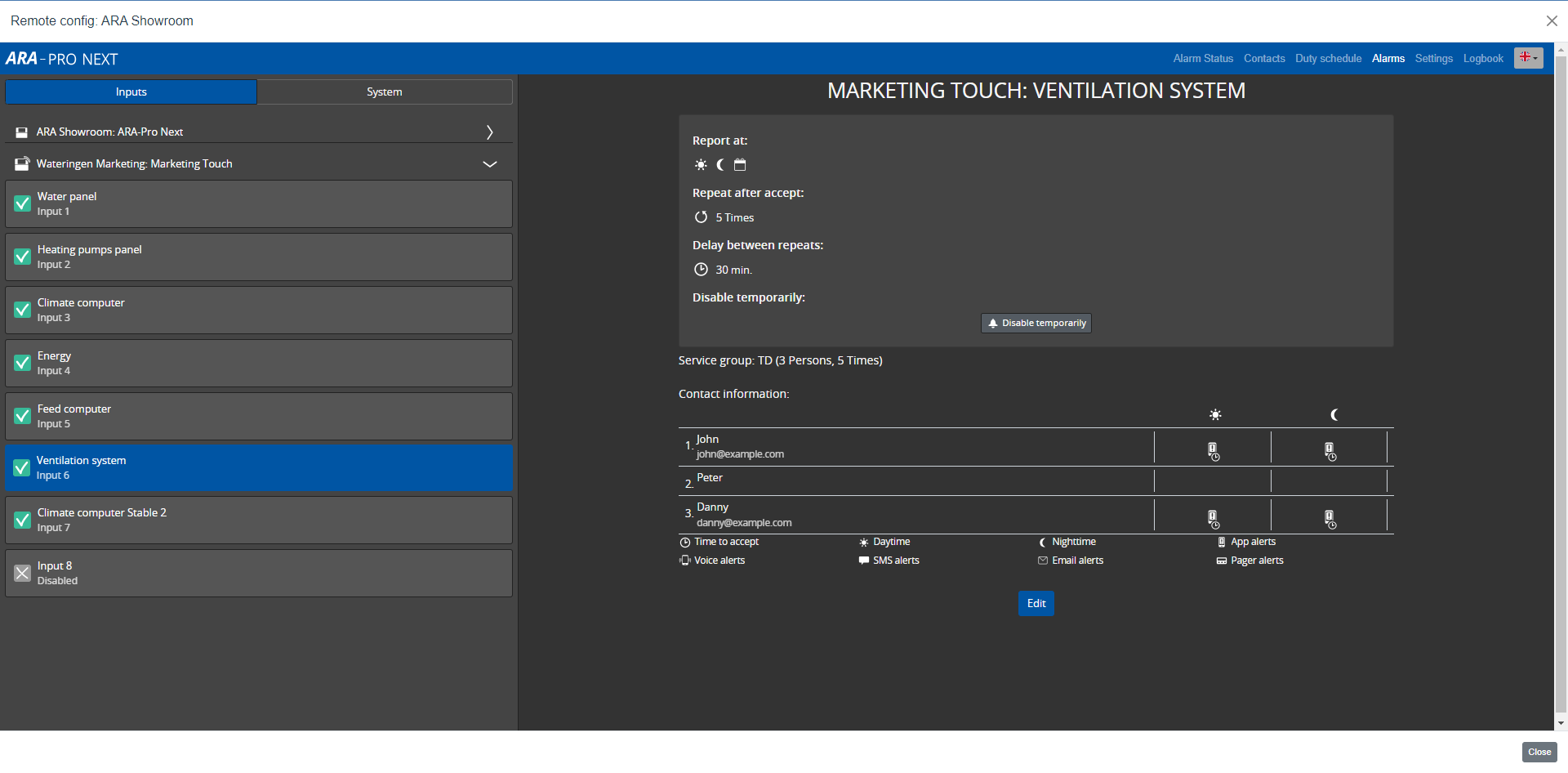
After you link the external dialler(s) to ARA, ARA adds the alarm inputs of the external dialler(s) to Alarms. You can then assign ARA service groups and set up further services in the duty schedule.