
 Activate Octalarm Connect
Good to know:
- The dialler type determines whether you use Connect or Connect XL. You do not need to make this selection yourself.
- If you activate via the dialler, you cannot choose VoIP only. If you require a VoIP only subscription, activate Octalarm Connect via the portal.
Activating via the dialler
- Go to
Settings. - In the navigation menu, scroll to
Octalarm Connect. - Click
Add. - Enter the administrator’s Email address at the end client. You will receive an activation Email at this address.
- Click
Next. - Click
Ready. - Open the activation Email received in the administrator’s mailbox and click the link provided.
- Complete the registration by entering the requested details.
- Click
Create. - Click
Checkout now.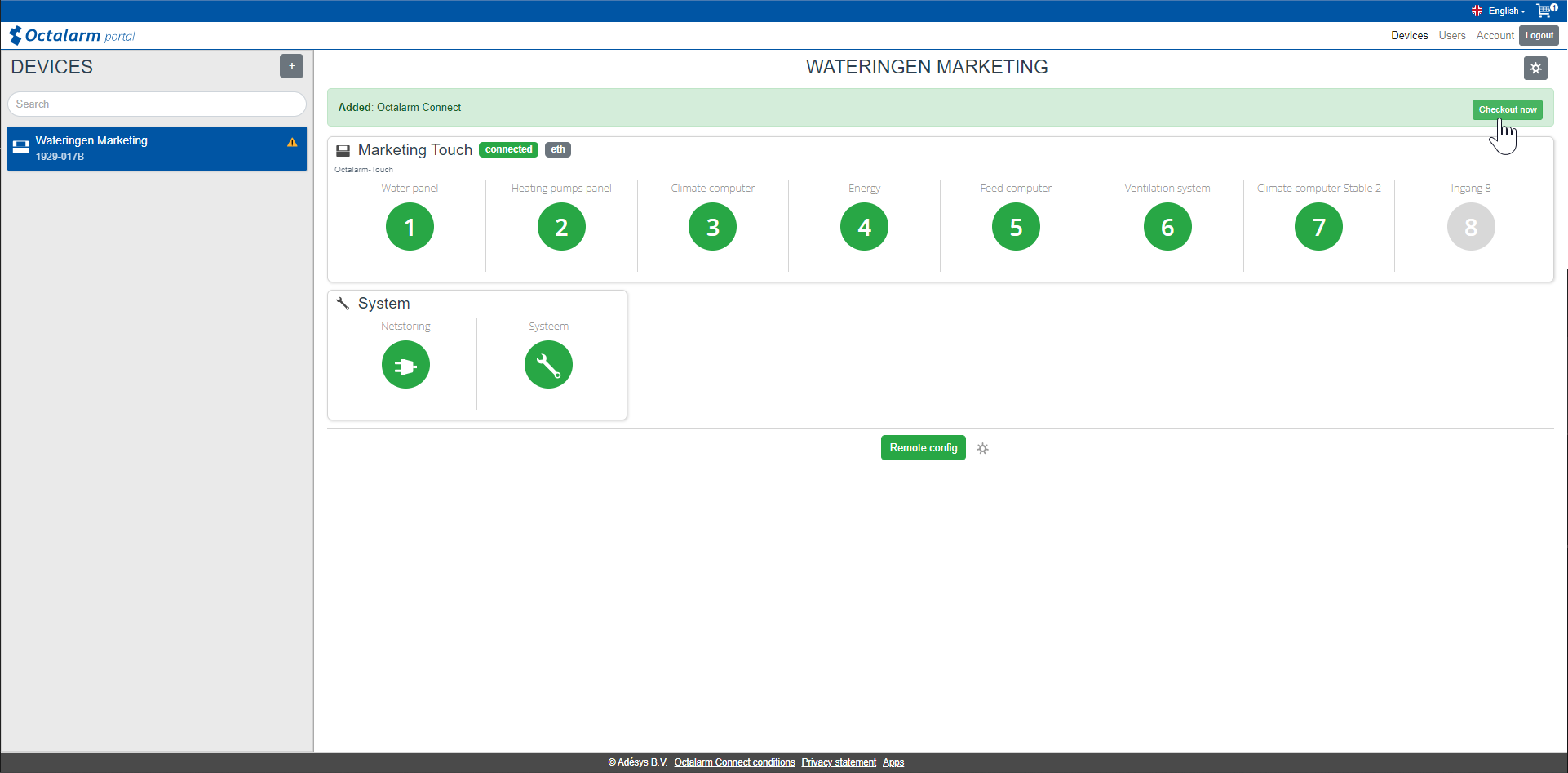
- Tick Agree to the terms (download the terms by clicking
Octalarm Connect terms). - Click
Checkout now. - Select your payment method: iDeal (Netherlands), Bancontact (Belgium) or credit card.
- Click
Continueand follow the payment instructions.
Once you have completed payment, the SIM card and VoIP calling are active.
Note: Set both your Email and VoIP server to Octalarm Portal. See Settings | Interfaces | VoIP: Resetting to the Adésys SIP server and Settings | Interfaces | Email | Resetting to the Adésys SMTP server for further instructions.
Activating via the Octalarm portal (https://portal.octalarm.com)
- Open https://portal.octalarm.com in your web browser.
- Create a company account (see The portal: portal.octalarm.com | Octalarm portal set up | Create a new company account) or log in with your existing account.
- Add a device (see The portal: portal.octalarm.com | Octalarm portal set up | Pair alarm dialler(s)) or select your device.
- In the grey bar under Subscribe to Octalarm Connect now, click
Add.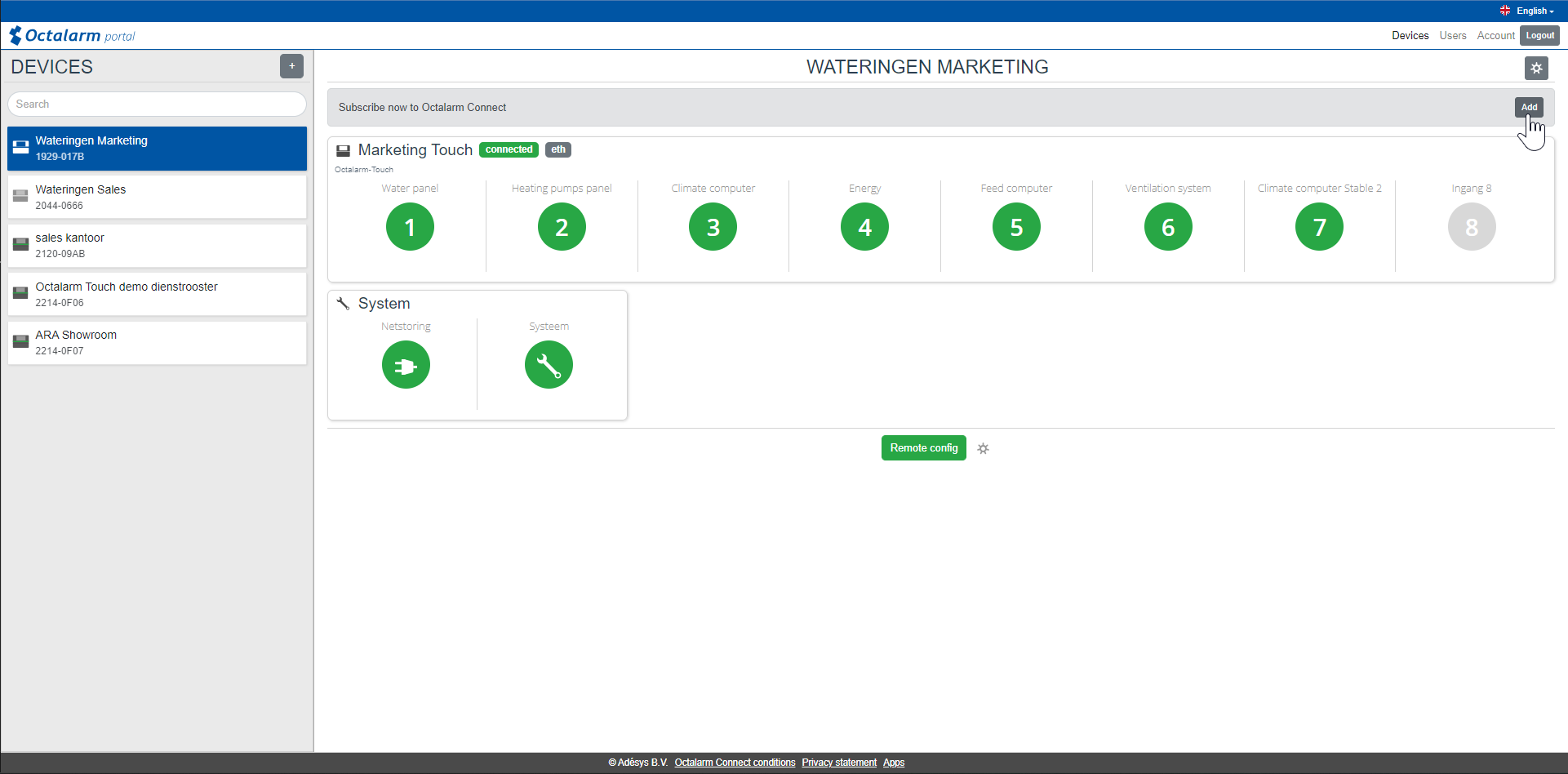
- Select either Octalarm Connect or VoIP Only.
- Click
Add. - Tick Agree to the terms (download the terms by clicking
Octalarm Connect terms). - Click
Checkout now. - Select your preferred payment method: iDeal, Bancontact or credit card.
- Click
Continueand follow the payment instructions.
After payment, the SIM card and VoIP calling are active.
Note: Set both your Email and VoIP server to Octalarm Portal. See Settings | Interfaces | VoIP: Resetting to the Adésys SIP server and Settings | Interfaces | Email | Resetting to the Adésys SMTP server.
If your dialler does not have an internet connection (no 4G / no Ethernet)
- Use any location with internet access to create a company account on the Octalarm portal (see The portal: portal.octalarm.com | Octalarm portal set up | Create a new company account) or log in to your account.
- Contact our helpdesk to manually add your alarm dialler to your company account. Provide the dialler’s serial number (see Settings | General | System Information).
- Call the helpdesk by phone: Monday to Friday, 08:30 – 17:00, at +31 174 794 024.
- Once your dialler is registered, activate Octalarm Connect via the Octalarm portal. For instructions, see Activating via the Octalarm portal.